License Setup and Update
Note
A valid license is required to use the functions to train neural networks (sannp --train, sannp --train-charge, sannp --classical). No license is required for the other functions and for running Quantum ESPRESSO and LAMMPS. The slhmc (the self-learning hybrid Monte Carlo method executable) does not require a license to run by itself, but does require a license to call the sannp to train a neural network.
If a GUI application can be used on the machine where NeuralMD is installed:
Refer to the following License Configuration or License Update.
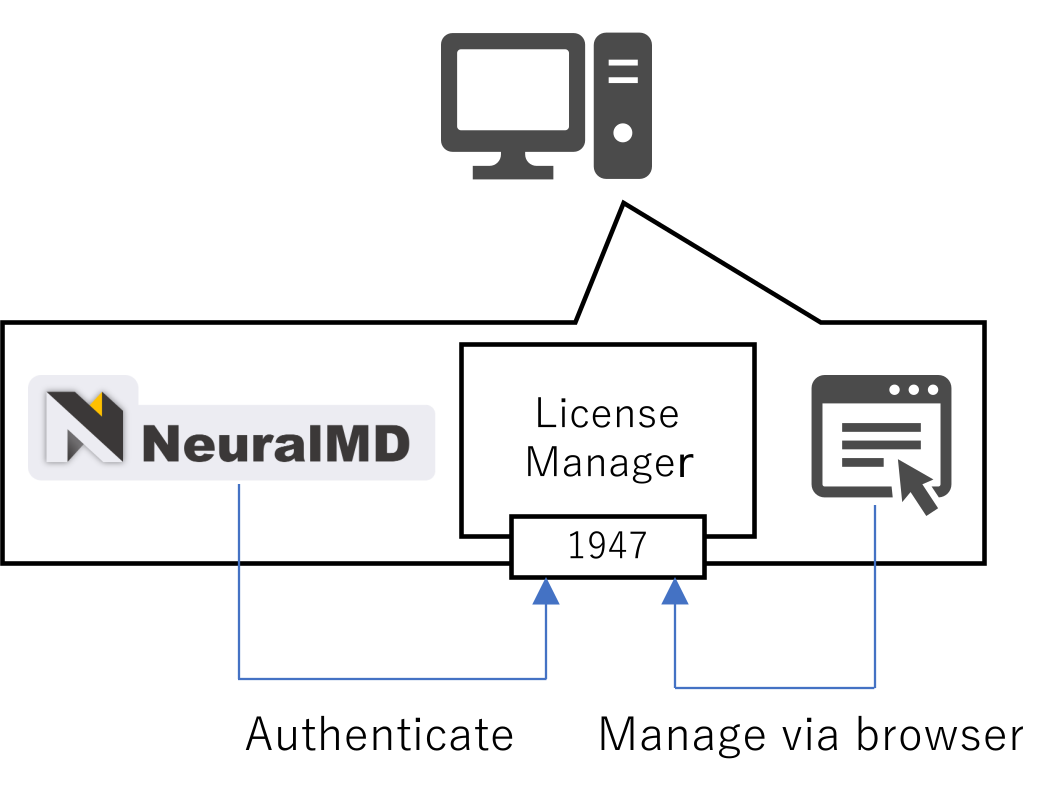
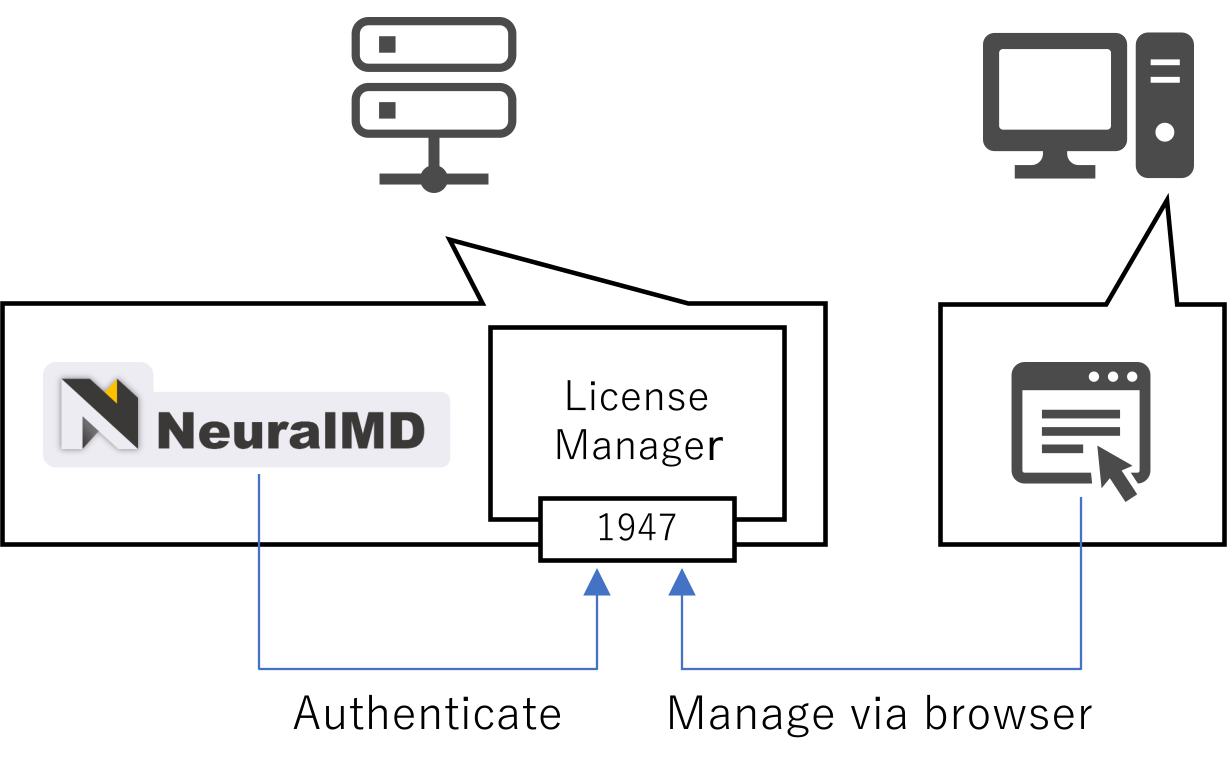
If a GUI application cannot be used on the machine where NeuralMD is installed:
After following the steps in Configuring Access to Remote ACC below, perform the License Configuration or License Update procedure from another machine that has GUI application access.
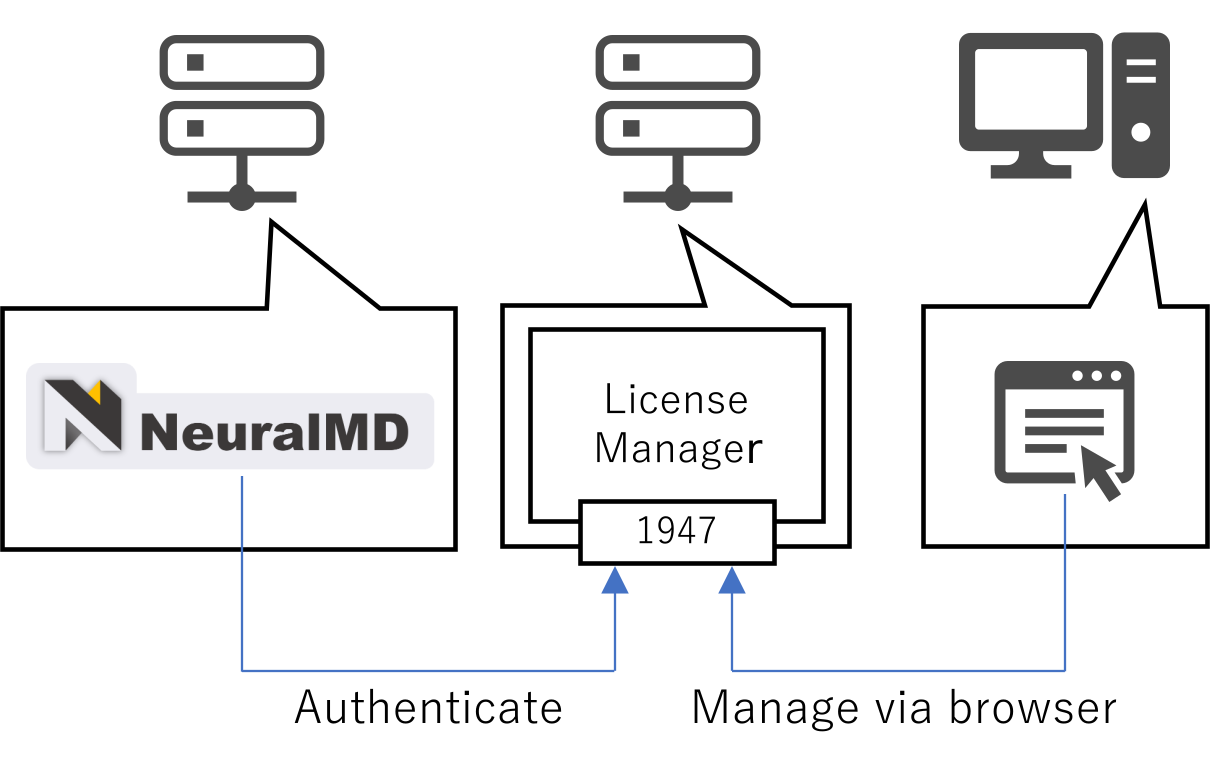
If you have purchased a floating license, refer to Floating license before performing the steps above.
License Configuration
After license registration, you will receive an Entitlement Certificate by email from noreply@sentinelcloud.com. Use the Product Key described in the Entitlement Certificate to set up the license.
C2V File Generation
In a web browser on the machine where Sentinel-LDK-RTE is installed, access the Admin Control Center (ACC) at http://localhost:1947. ACC can also be accessed from an offline machine.
Note
Sentinel-LDK-RTE is installed together with NeuralMD if you select ‘Yes’ for “Install Sentinel-LDK-RTE?” in the NeuralMD installer.
Note
If a web browser is not available, refer to Configuring Access to Remote ACC and access ACC from another machine where a web browser is available.
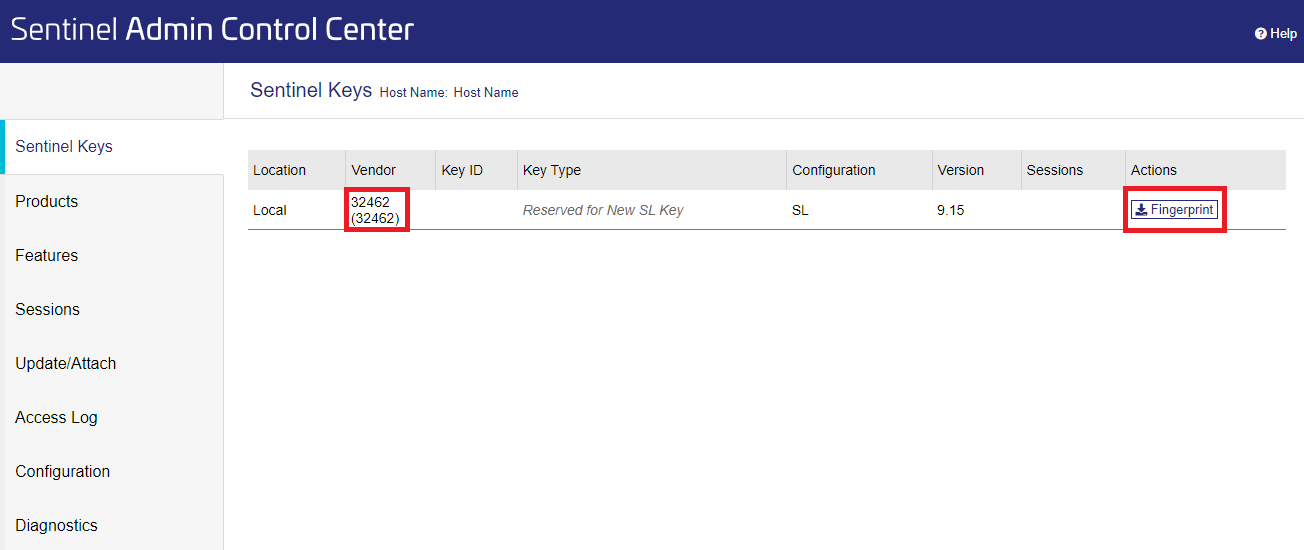
From the list on the ACC’s Sentinel Keys screen, find the row with 32462 in the Vendor column. Click the Fingerprint button on this row to download the C2V file fingerprint_32462.c2v.
Note
If keys for our other products are registered on the machine, the Fingerprint button will not be displayed on the row where the Vendor column shows 32462. In this case, click the C2V button displayed for the key of our other product to download the C2V file (KeyID)_(timestamp).c2v.
Warning
When updating a license, be sure to click the C2V button displayed for the key you want to update to download the C2V file (KeyID)_(timestamp).c2v.
V2CP File Generation
Next, access the Entitlement Management System (EMS) in your web browser.
Note
If the machine where you downloaded the C2V file is offline, move the C2V file to another online machine and then access EMS.
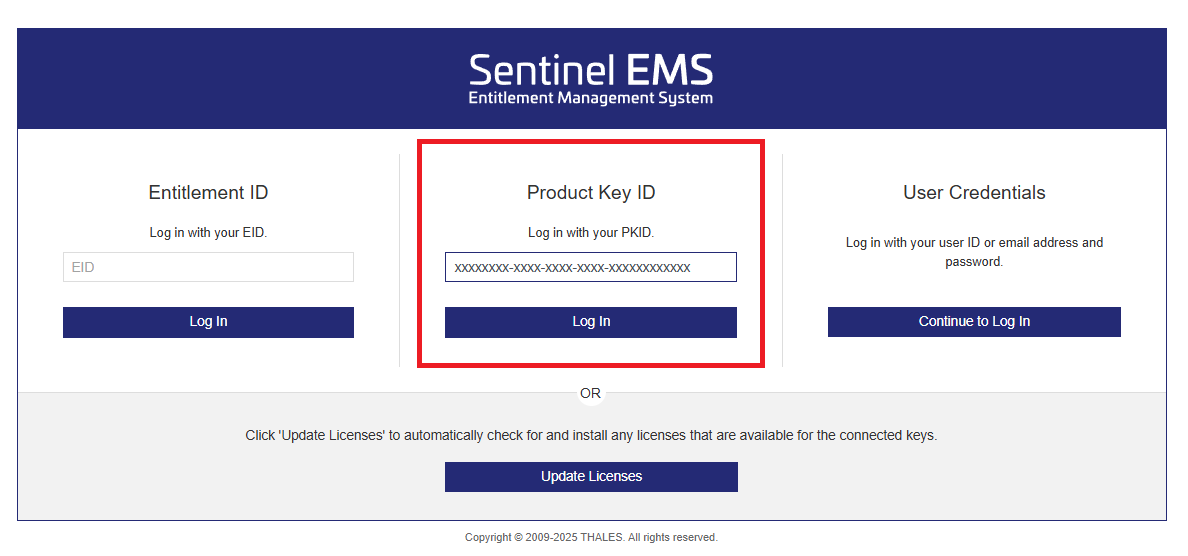
Enter the “Product Key” from your Entitlement Certificate into the “Product Key ID” field, and click the Login button.
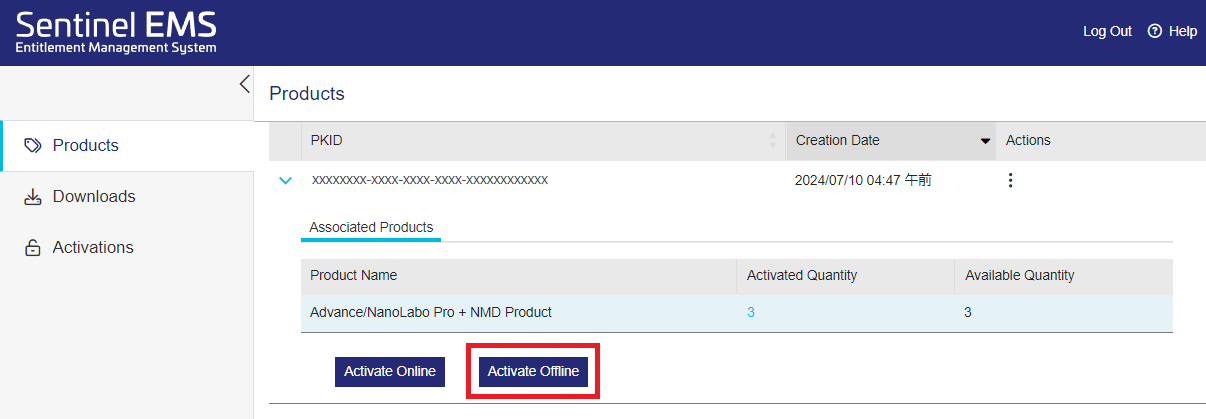
When the Products screen opens, click the Activate Offline button.
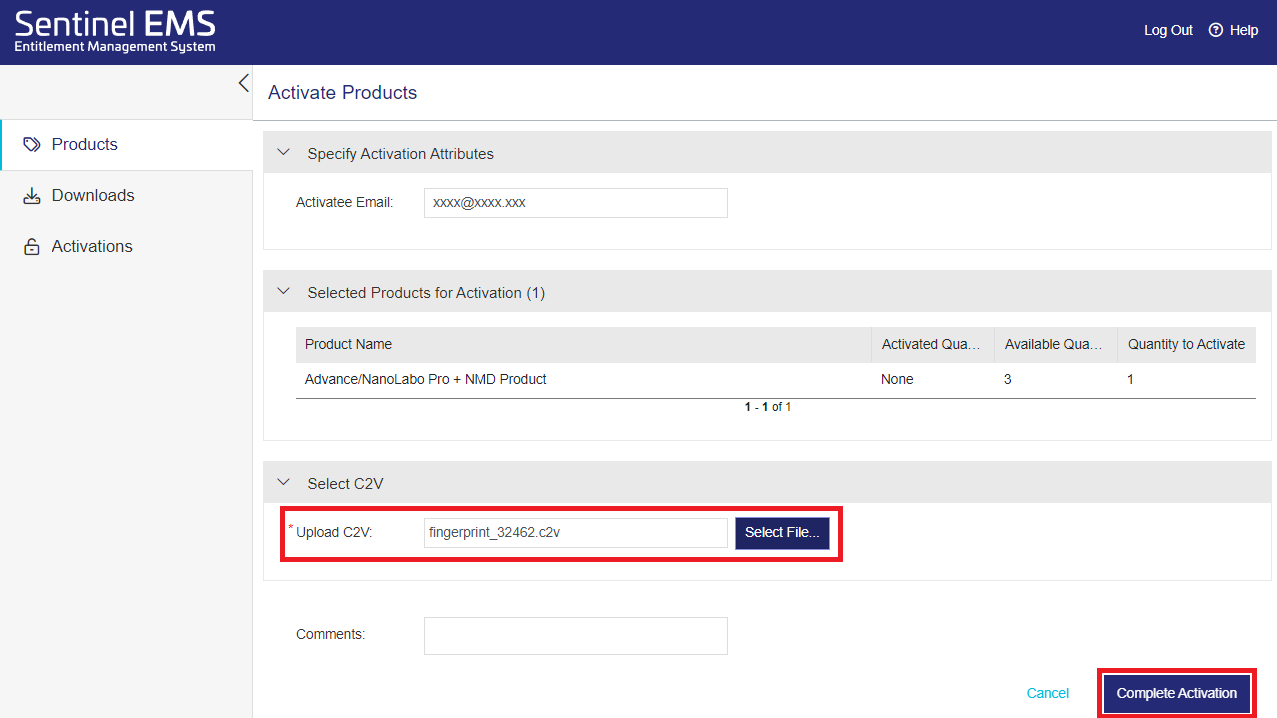
When the Activate Products screen opens, click the Select File button, select the C2V file you downloaded earlier, and then click the Complete Activation button.
Warning
When updating the license, be sure to use the C2V file (KeyID)_(timestamp).c2v, not fingerprint_32462.c2v.
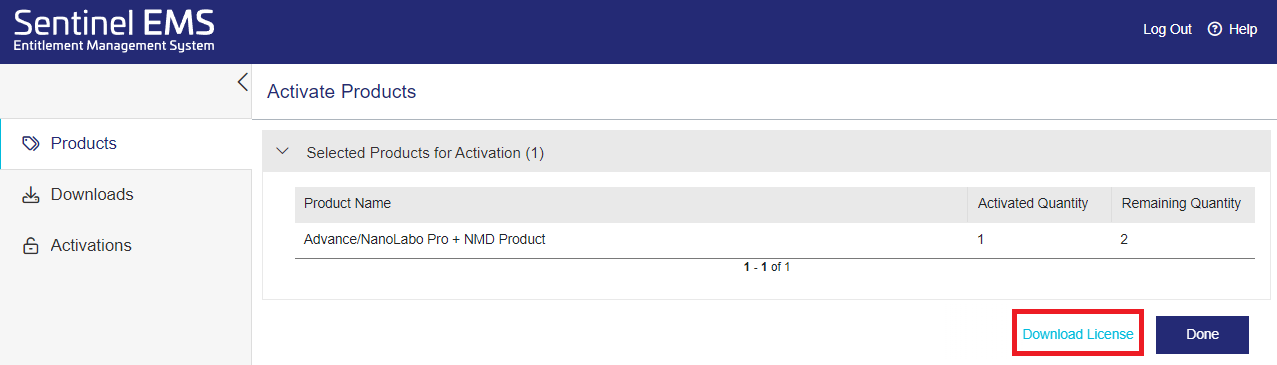
After successful activation, click Download License to download the V2CP file (extension: .v2cp).
Note
An email with the same V2CP file attached as a compressed file will be automatically sent, so you can also unzip and use that file.
Store the downloaded V2CP file in any directory on the machine where Sentinel-LDK-RTE is installed.
Applying the V2CP File
Return to the ACC screen and open the Update/Attach screen from the left-side menu. Click the Select File button, choose the downloaded V2CP file, and then click the Apply File button.
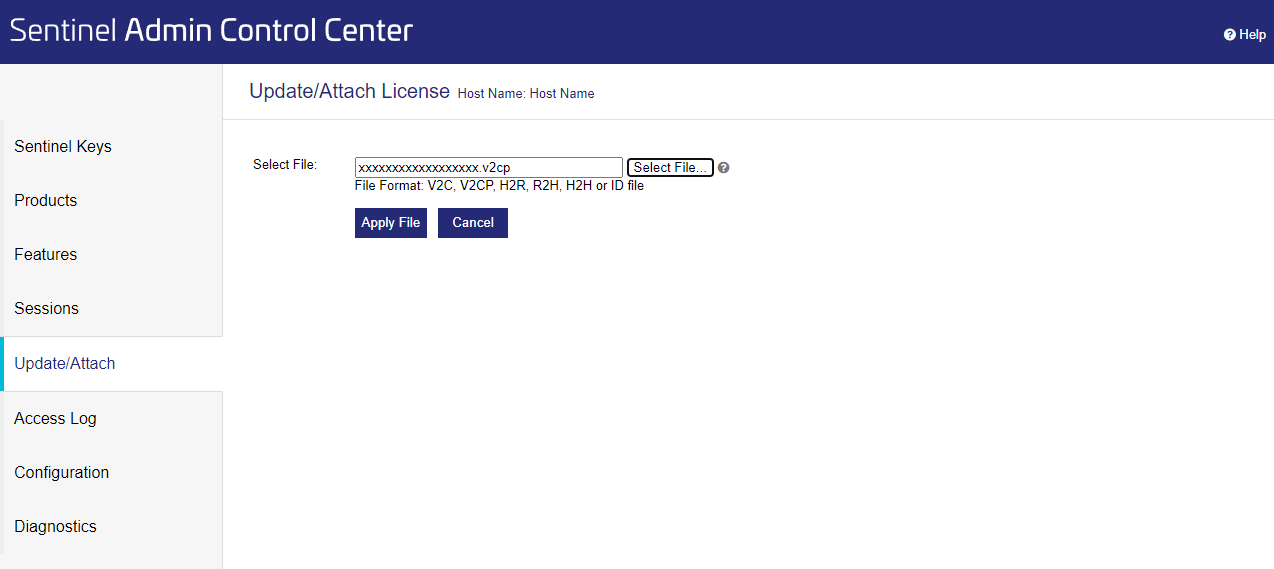
Once the V2CP file has been successfully applied, the license setup is complete.
Configuring Access to Remote ACC
If GUI applications cannot be used on the machine where Sentinel-LDK-RTE is installed, you need to access ACC from another networked machine where GUI applications are available.
Note
Sentinel-LDK-RTE is installed together with NeuralMD if you select ‘Yes’ for “Install Sentinel-LDK-RTE?” in the NeuralMD installer.
To do so, configure remote access to ACC using one of the methods below.
On the machine where Sentinel-LDK-RTE is installed, edit the
/etc/hasplm/hasplm.inifile with administrator privileges and add the configuration settings, referring to the example below.
/etc/hasplm/hasplm.ini Configuration Example
Warning
If another value is already set for adminremote, you do not need to change that value. Change only the value of accremote.
After completing the above settings, you can access the ACC on the machine where Sentinel-LDK-RTE is installed by entering http\ ://<IP_address_of_Sentinel-LDK-RTE_machine>:1947 into the address bar of a web browser on another machine.
Note
After connecting to the remote ACC, it is recommend to set a password via the GUI. Select Configuration from the left-side menu of the ACC screen and open the Basic Settings tab. In the Password Protection section, you can set the password scope and the password itself. This password will be required when accessing the selected scope (ACC configuration pages or all pages).
Access the remote ACC using SSH port forwarding. For details, refer to this document.
Floating license
If you have purchased a floating license, you can use NeuralMD on other machines (Windows/Linux) that are networked with the machine where the license was set up.
Machine to be used as license server
Download Sentinel-LDK-RTE (License Manager) and install it.
tar -xf Sentinel-LDK-RTE-for-AdvanceSoft-v10.13.1_Linux.tar.gz
cd aksusbd-10.13.1
sudo ./dinst
# To uninstall, execute dunst in the same folder.
sudo ./dunst
After installation, configure the license using ACC.
Since the license manager starts automatically every time the machine boots up, no further specific operations are required after you configure the license once.
Note
If GUI applications cannot be used on the license server, perform Configuring Access to Remote ACC and then access ACC from another machine with available GUI applications to configure the license.
Note
If using a Windows machine as the license server, download Sentinel-LDK-RTE (License Manager) from here and install it by referring to this document.
Note
If TCP/UDP port 1947 is not open in your firewall settings, please change the settings to open it. (For Windows machines, these ports are typically opened automatically during installation, so firewall configuration is usually not required.)
Machine to be a client to use NeuralMD
Please install NeuralMD. Normally, just installing NeuralMD is sufficient to run calculations.
Note
ライセンスサーバーと異なるネットワークセグメントに存在するクライアントマシンで、NeuralMDインストール時にライセンスサーバーのIPアドレスまたはホスト名を設定していない場合は、次の方法で設定を行ってください。
Create the
hasp_32462.inifile in the directory specified below (or edit it if it exists). Then, using the example below for reference, add the license server’s IP address or hostname (or add a new line if the file already has entries).
For Windows:
%LocalAppData%\SafeNet Sentinel\Sentinel LDK\For Linux:
$HOME/.hasplm/
If the IP address is 192.168.00.000
License Update
Please request a license update to support.nano@advancesoft.jp *.
* We do not accept commercial or promotional emails unrelated to our products or services to this address.
After license registration, you will receive a new Entitlement Certificate by email from noreply@sentinelcloud.com. Please use the Product Key described in it to update your license.
The basic operation method is the same as License Configuration. However, please note the following points.
Warning
Use newly generated C2V and V2CP files. Please be careful not to accidentally use files generated during previous setups or updates.
Warning
When downloading the C2V file from the Sentinel Keys screen in ACC, be sure to click the C2V button displayed for the key you want to update to download the file.
Note
The filename of the C2V file required when setting up a Sentinel license for the first time is fingerprint_32462.c2v, but the filename of the C2V file needed for updates is (KeyID)_(timestamp).c2v.